Who Does What, by When
Task Management
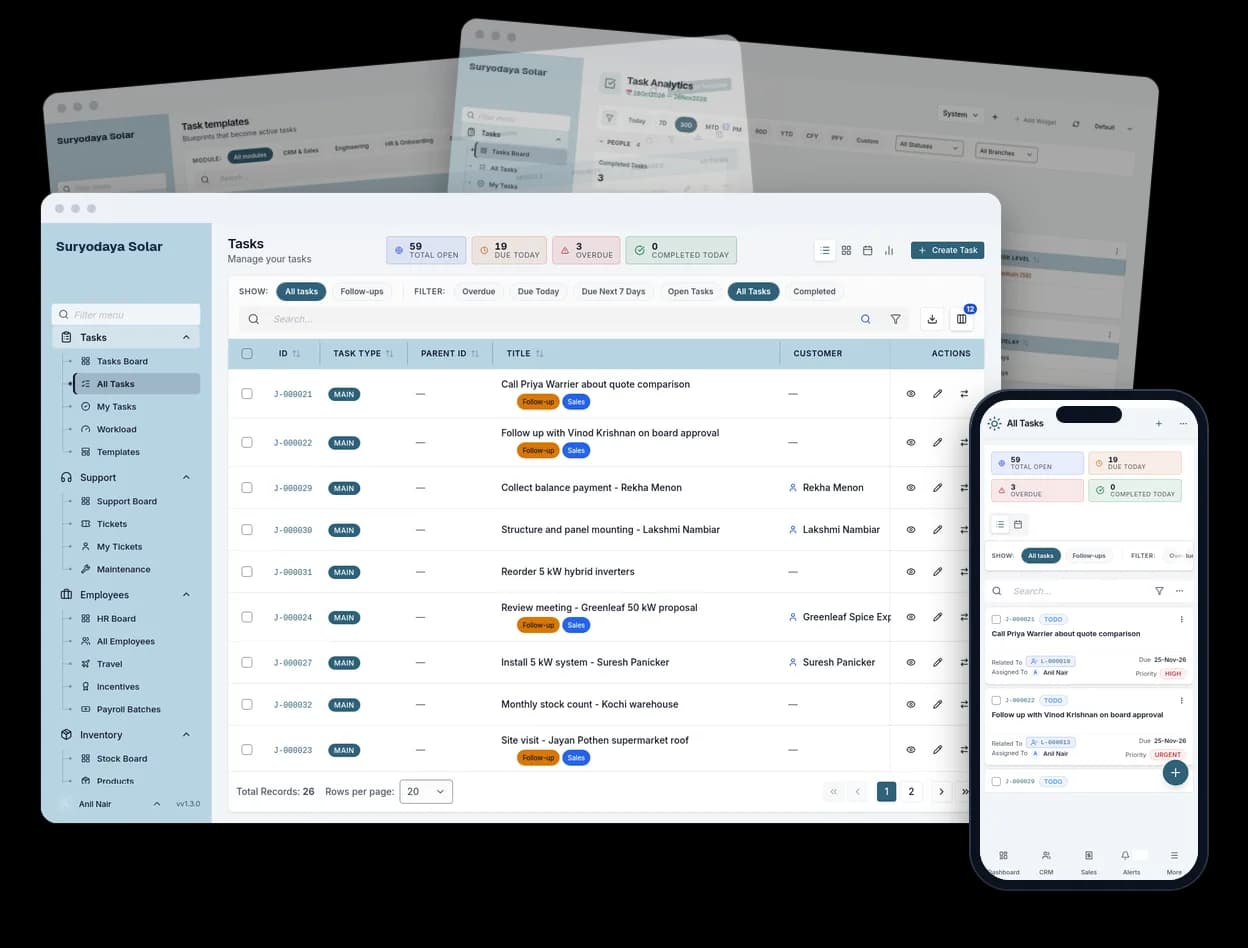
Give every job one owner and a due date. Your team works from My Tasks, and you follow the work on a list, board, calendar, timeline or workload view.
Free 30-minute walkthrough · reply within 1 working day
01Key capabilities
What it does.
- 01Create tasks from a template
- 02Each step goes to the right role
- 03Track on the board, timeline or calendar
- 04Complete it and note the hours spent
At a glance
- Board, timeline and calendar
- Role-based templates
- Follow-up register
- Workload view
- 01
List, board, calendar, timeline (Gantt) and workload views.
- 02
My Tasks for each person, with overdue, due today, next seven days, open, completed and watched tabs.
- 03
New task alerts in the app and by email, plus browser notifications where the person allows them.
- 04
A reminder before the due time, two hours ahead by default, and an alert if the date is missed.
- 05
Templates with subtasks, checklists, roles, start day and number of days for each step.
- 06
Subtasks can wait on each other. A blocked one moves to To Do once what it waits on is done.
- 07
Comments, mentions, documents and watchers on each task.
- 08
Tasks open on their own for new support tickets, scheduled AMC visits and site surveys.
- 09
A new installation gets its task list from a template, by project type.
- 10
Ready solar job templates, including KSEB net metering, Electrical Inspectorate (CEIG) approval, PM Surya Ghar subsidy claim, commissioning, handover and AMC visits.
- 11
A qualified lead raises the residential site visit tasks, and a won deal raises the customer KYC pack.
- 12
Assigning work on someone’s leave or a non-working day is stopped unless you choose to go ahead.
- 13
Sales and support follow-ups, with a follow-up register report and checklists raised from a ticket.
- 14
Workload view that marks each person Healthy, Loaded or Overloaded.
- 15
Hours entered when a task is completed, shown in the Timesheet Summary report.
Can a task have more than one assignee?
Each task has one assignee, so it is clear who owns it. Others can be added as watchers, or you can split the job into subtasks.
Can templates assign work by role?
Yes. A subtask can carry a role, and the person is picked when the template is used.
Can we ask for proof before a task closes?
Yes. A template step can require an attachment or document before it can be completed.
Who is told when a task is overdue?
The assignee, in the app, by email and by browser notification where allowed. If the date is moved and missed again, they are told again.
How is workload measured?
By counting tasks. More than 10 open or more than 2 overdue shows as Overloaded. More than 5 open or any overdue shows as Loaded.
Where do hours spent on a task show?
Completing a task without subtasks asks for the hours spent. These appear in the Timesheet Summary report.
Do we have to write the solar job steps ourselves?
No. evo7 comes with solar job templates, and you can change them or add your own.
What do staff see first on a phone?
The home screen opens on a Today view with overdue, due today and coming up tasks. It runs in the phone’s browser.
Are task alerts sent on WhatsApp?
Not by default. They go to the app, email and browser notifications.
See it running on your own operations
A 30-minute walkthrough. Bring a recent quote, your stock sheet or a job that is stuck.
Free 30-minute walkthrough · reply within 1 working day